Please note that you require Organisation Staging Admin Rights to access these pages, only available to uses of regulatory systems.
The Staging System is accessed from the Admin menu -> Batch Jobs.
Staging system
All feature data (gauges, and artificial influences, and catchments created by users) exist with an organisation. Users can be members of more than one organisation and can easily switch from one to another. They can also have different data access rights, for example read-only in one organisation, read-and-write in another.
The intention is that your active set of feature data resides in a "live", or production organisation. When you want to edit it, Qube provides a facility for you to copy it to a different organisation, one hydrometric area at a time, edit it, then copy it back. You can think of this second organisation as a staging area for new data; the data copying system is therefore referred to as "the Staging System".
Another use for the Staging System is to create dedicated organisations used for training purposes where users can edit data safely. You could also create organisations to run experimental data scenarios.
Quick workflow
- Export one or more hydrometric areas from "production" to another organisation, for example, one called "Training"
- Edit data in "Training" add or delete features, experiment with different data scenarios.
- Do any necessary QA
- Then, either
- Copy the data back to the production system if you are happy with it, or
- Go back to step 1 to re-populate the Training area with data from Production
- Do nothing; leave the edited data in your staging/test/training organisation.
Typically users in the production organisation are not granted data editing rights; editing is best done in the secondary organisations by users who are granted read/write permissions.
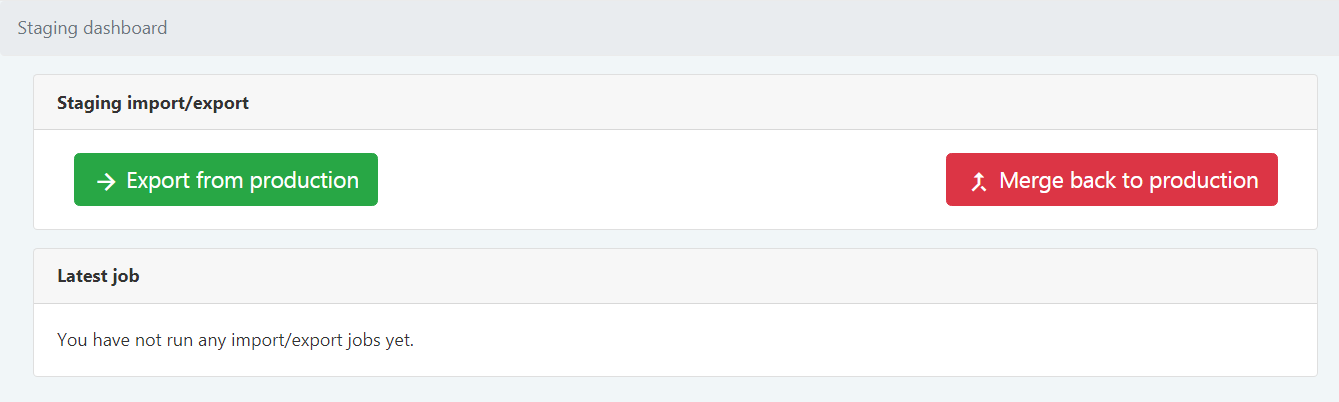
Step by step
1. Select 'Export from production'
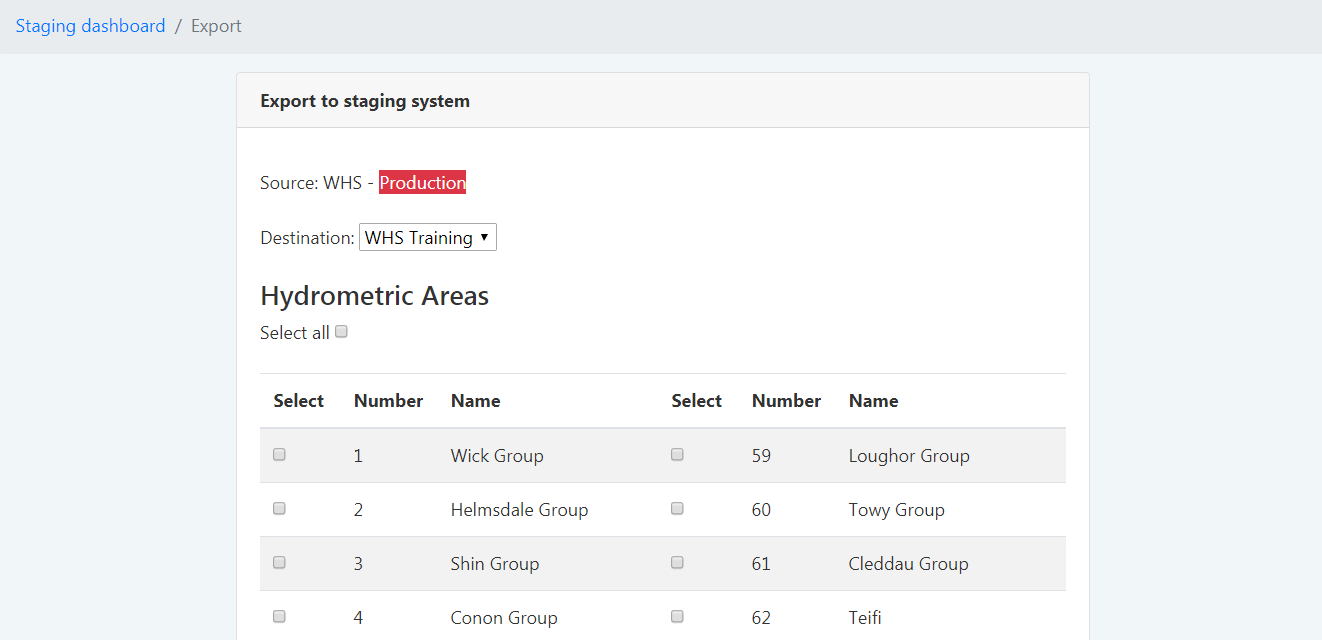
Select your destination (e.g. staging or training) and the hydrometric area you'd like to export.
You'll see a notification that your export has been added to the queue. Under "Latest job" you'll start to see progress notifications as the system exports the various types of data. Once complete, Qube will display a success message. You are free to close your browser while the export job is working. Qube will notify you by email once its work is complete.
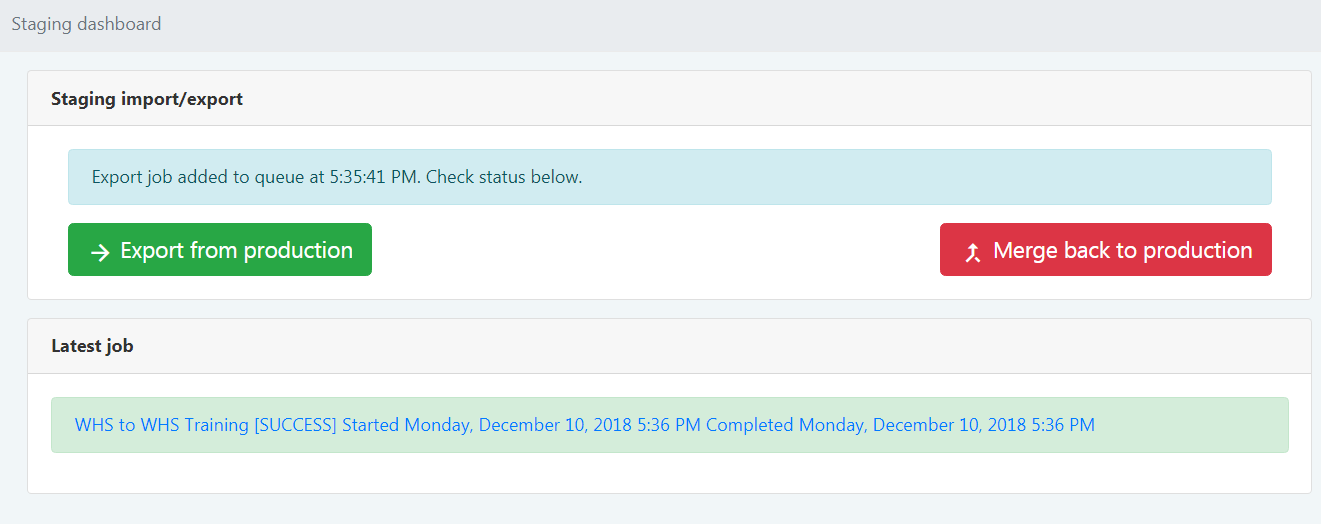
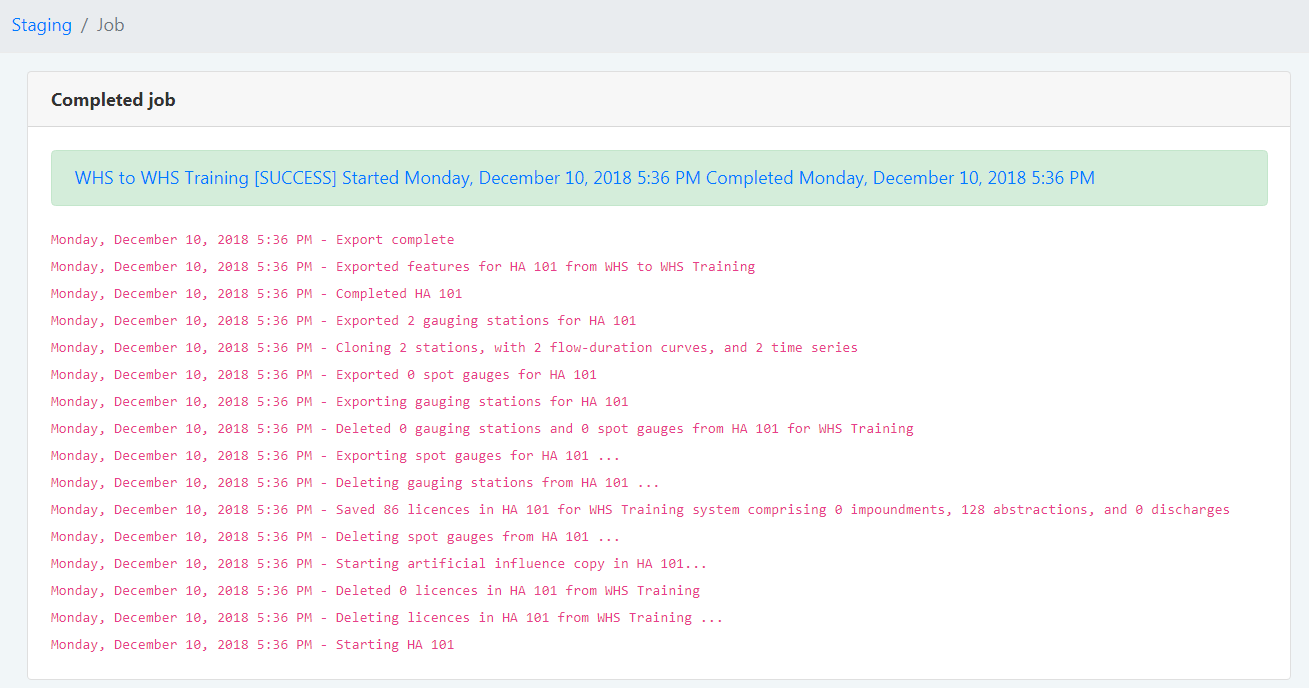
Clicking on any completed or partial job to see a time line of the actions performed.
2. Switch to the target organisation
Click on your organisation name at the top of the page to switch to the target organisation you have just exported to.
Make your edits.
3. Select 'Merge back to production'
Once reviewed and quality assured, the data for one or multiple hydrometric areas can be merged back to the production organisation. Select your source (e.g. Training) and the hydrometric area you'd like to export.
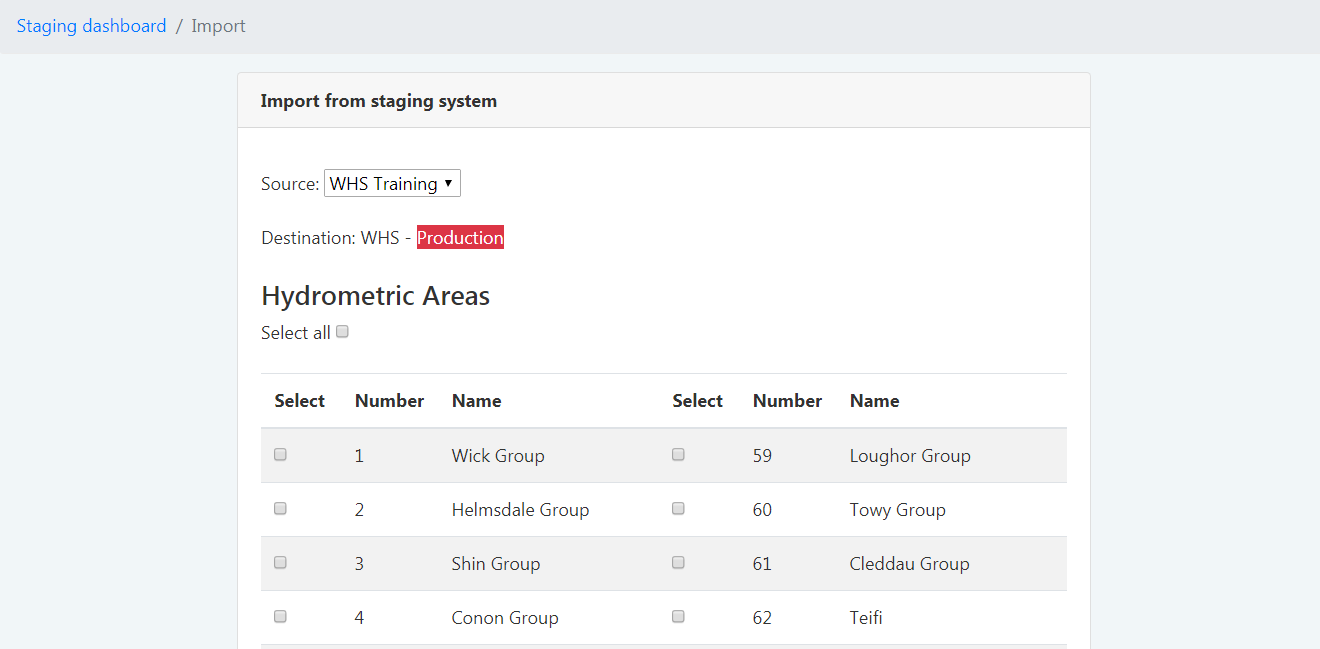
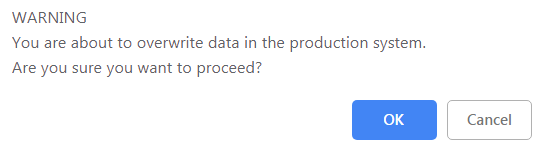
You will get a warning asking if you want to proceed as this process will overwrite the data in the production system for the given hydrometric area. Check carefully before you proceed.